Blur Images Online
Fast, Free, Privacy-First
Protect sensitive information in screenshots instantly. No uploads, no sign-up, 100% private.
Upload Your Screenshot
Drag and drop your image here, or click to browse
Supports PNG, JPG, WebP, BMP • Max 25MB • Large images (>10MB) auto-compressed
Or press Ctrl+V to paste from clipboard
Want to try first?Check out our demo images below
Try It Now - No Upload Needed
Experience BlurShot's privacy tools with our sample images. Click any example to start editing instantly.
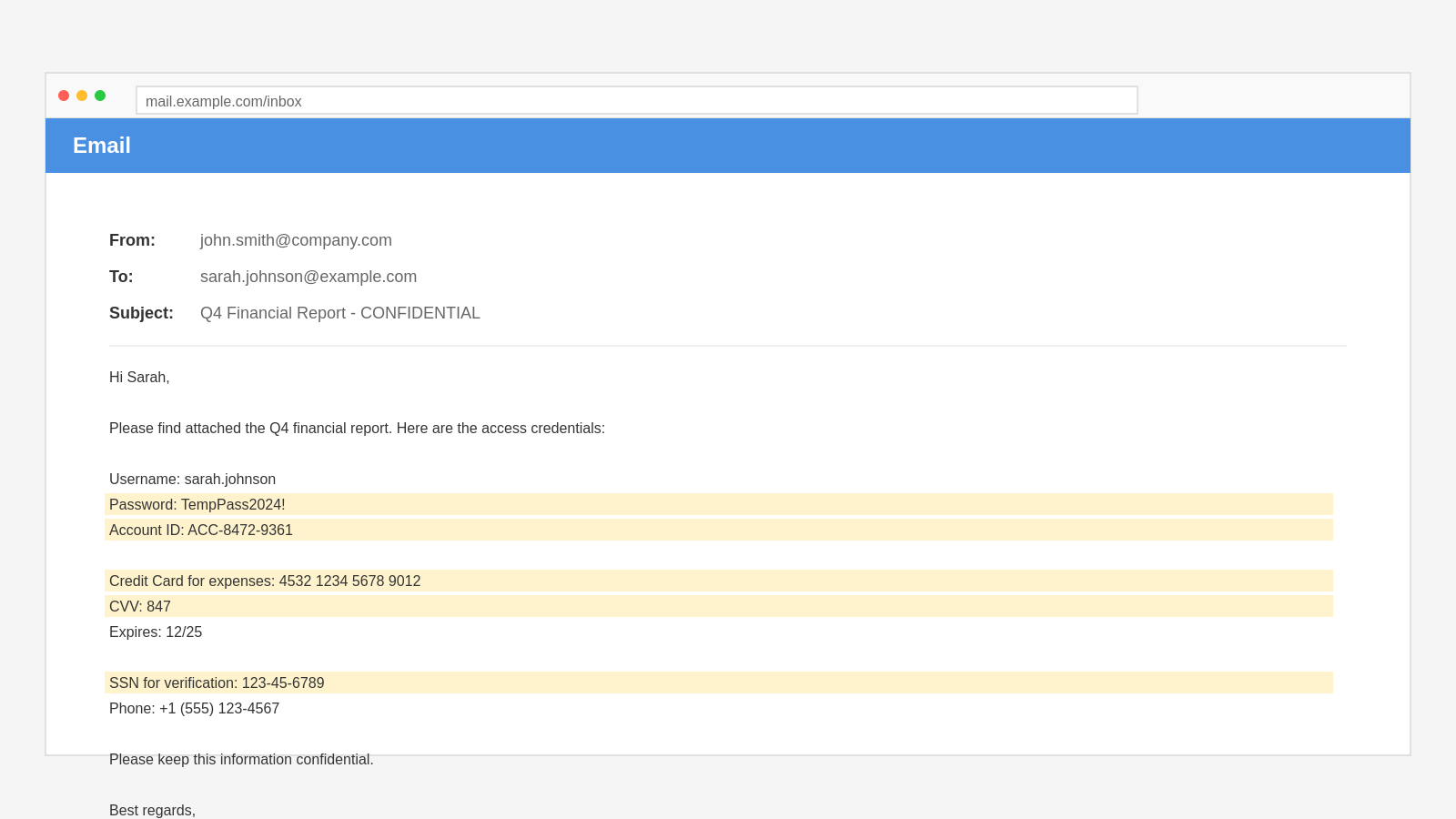
Contains fake credentials, account numbers, and sensitive information
Email Screenshot
Hide email addresses, passwords, credit cards, and personal data
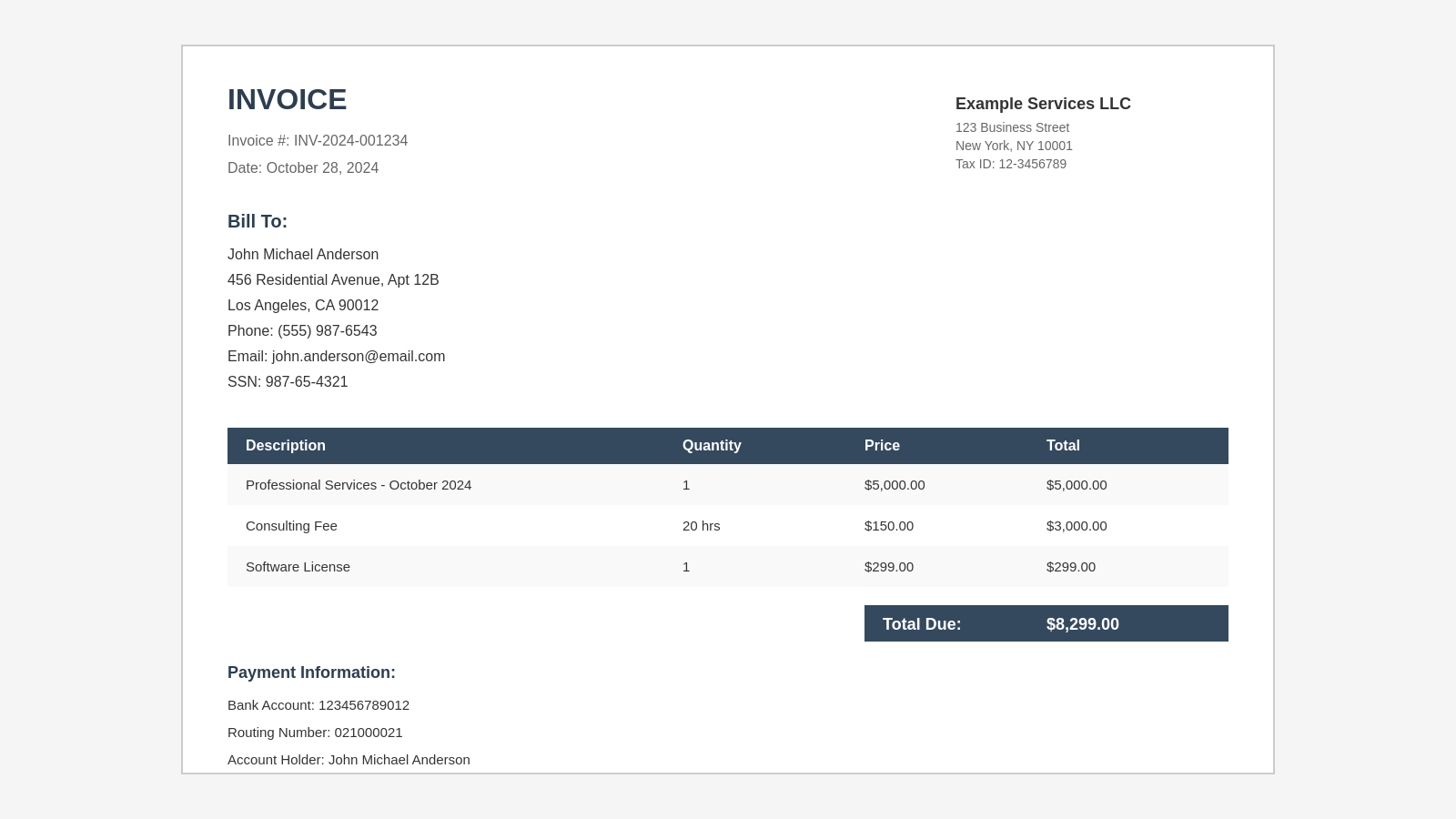
Contains fake PII including SSN, addresses, and payment information
Invoice Document
Remove names, addresses, phone numbers, SSN, and bank details

Contains fake credentials accidentally posted on social media
Social Media Post
Blur usernames, hide profile photos, redact sensitive posts
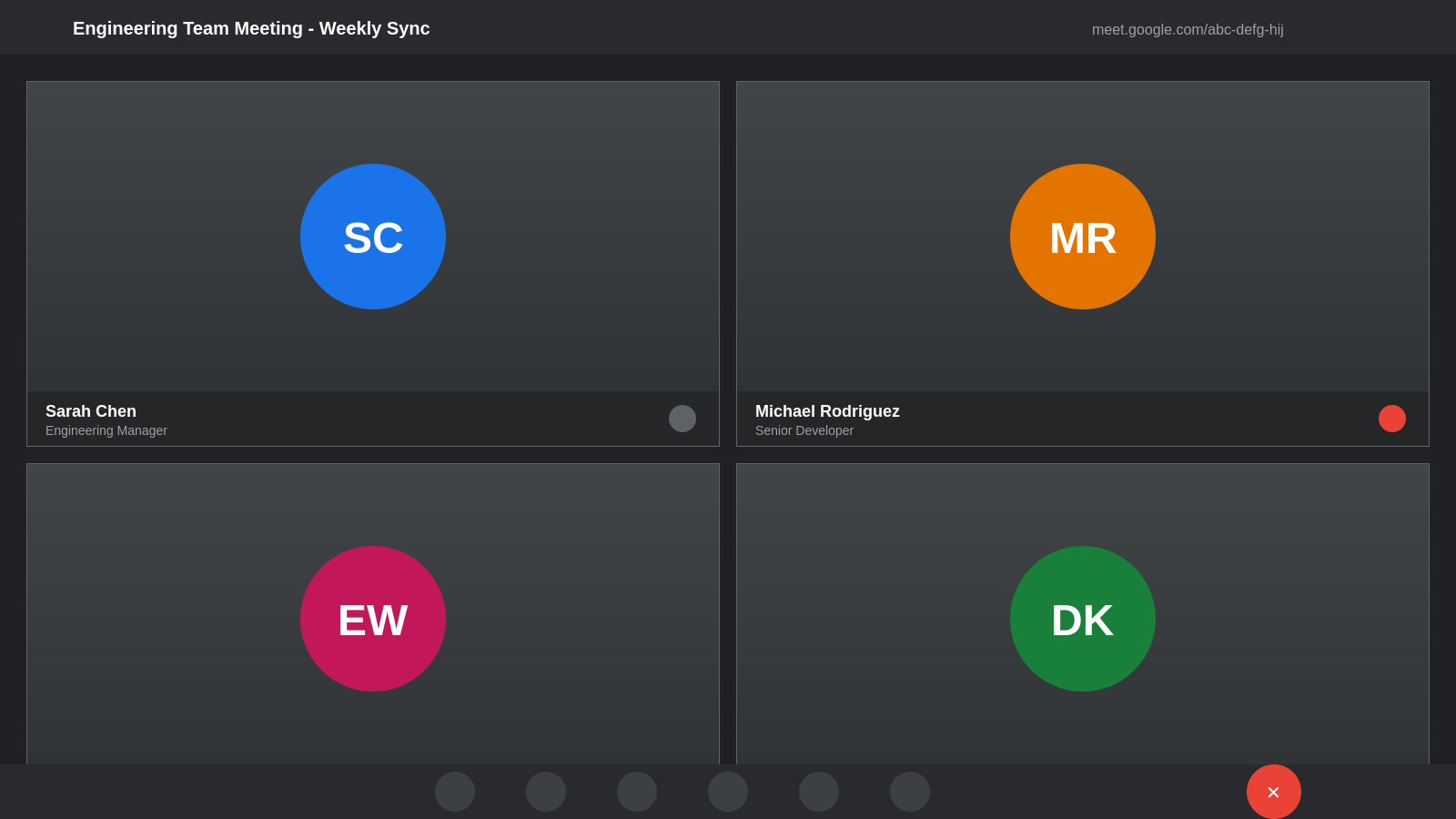
Contains fake participant names and profile pictures
Video Meeting
Anonymize meeting participants and protect identities
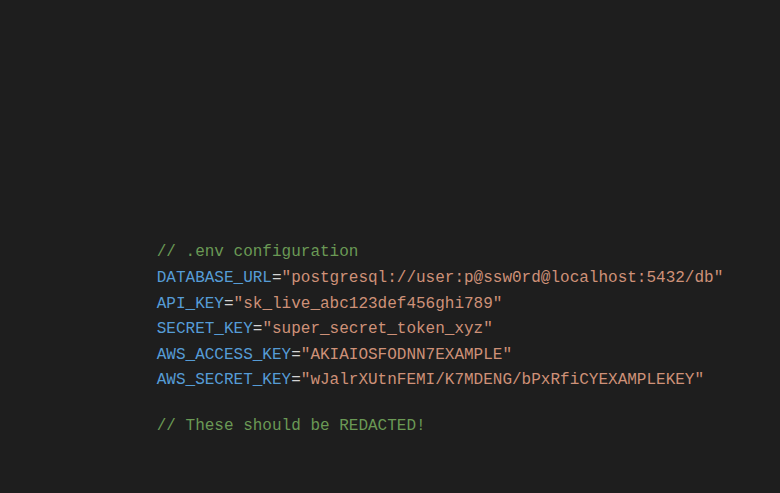
Contains fake API keys, tokens, and configuration secrets
Code Screenshot
Redact environment variables, API tokens, database credentials

Contains fake patient information for HIPAA compliance testing
Medical Record
Blur patient names, DOB, medical record numbers, diagnoses

Contains fake profile photos and personal information
Social Post with Faces
Blur faces in shared screenshots while keeping content visible
How It Works - Privacy-First Architecture
Unlike traditional online editors that upload your images to servers, BlurShot processes everything locally in your browser. Here's what makes us different:
Your Image Stays Local
When you upload or paste an image, it never leaves your browser. No network requests, no server uploads, no cloud storage.
Edits on Your Device
All blur, pixelate, and redaction use HTML5 Canvas API in your browser. Your device's CPU does the work—not our servers.
Download Directly
Export your edited image straight to your device—no middleman servers. Copy to clipboard or download as PNG/JPG instantly.
🔍 Verify It Yourself - We Have Nothing to Hide
Don't just take our word for it! Open your browser's Developer Tools (press F12) and check the Network tab while editing. You'll see zero network requests to external servers during blur/pixelate/redaction operations.
Note: The optional AI face detection feature (with your explicit consent) sends images to Vercel AI Gateway for processing. All other tools are 100% client-side.
What's New in BlurShot
Recent updates and improvements to help you protect your privacy
📦 Batch Mode
NEWProcess multiple images at once! Upload up to 10 images, apply the same preset to all of them, and download everything as a ZIP file. Perfect for support teams, moderators, and anyone handling bulk screenshots. Click the purple "Batch Mode" button to get started.
🎯 Getting Started Tour
UPDATEDFirst-time users can now take an interactive tour of all features. Click the "Tour" button in the header to learn how to blur, pixelate, and redact like a pro!
🤖 AI-Powered Face Detection
BETAAutomatically detect and blur faces with one click. Perfect for anonymizing group photos and meeting screenshots. Your consent is required before any AI processing.
📜 Edit History Panel
Never lose your work! All edits are automatically saved to your browser's local storage. View thumbnails, restore previous versions, or download multiple edits as a ZIP file.
⚡ Quick Presets
Save time with one-click presets for common scenarios: blur backgrounds, hide passwords, anonymize documents, and more. Create and save your own custom presets too!
🌙 Dark Mode
Easy on the eyes! Toggle dark mode from the header for comfortable editing in any lighting condition. Your preference is saved across sessions.
💡 All features are free and work 100% locally in your browser. We're actively improving BlurShot based on your feedback!
Features
Powerful privacy tools at your fingertips
Blur Sensitive Areas
Apply Gaussian blur with adjustable intensity to hide personal information, passwords, or sensitive data
Pixelate Faces & Text
Create mosaic effects with adjustable pixel size to anonymize faces, names, or any identifiable content
Redact with Colored Boxes
Cover sections with solid colors and adjustable opacity - perfect for blocking out entire paragraphs or sections
Privacy-First Processing
All editing happens in your browser. Optional AI face detection requires consent via Vercel AI Gateway.
Who Uses BlurShot?
Trusted by professionals across industries to protect sensitive information
Customer Support
Blur customer PII in bug reports and support tickets before sharing with developers
Software Developers
Redact API keys, tokens, and credentials before sharing code screenshots
HR Professionals
Censor employee PII (SSN, addresses, salary) for GDPR compliance
Content Moderators
Blur inappropriate content and pixelate faces during content review
Journalists & Researchers
Protect source identities, redact confidential information in documents
Legal Professionals
Redact attorney-client communications and privileged court documents
Educators & Students
Remove student PII from educational materials, blur FERPA-protected data
Social Media Users
Protect personal privacy when sharing screenshots online, blur home addresses, phone numbers, and email addresses in posts
Designed for privacy teams, QA engineers, support specialists, and anyone who needs to sanitize screenshots without leaving the browser.
Privacy-First Approach
No server uploads: Your images are processed entirely in your browser using HTML5 Canvas. We never see your screenshots.
No data collection: We don't track, store, or analyze your images. What you edit stays on your device.
No sign-up required: Start using BlurShot immediately. No account creation, no email addresses, no friction.
Open-source friendly: Our client-side approach means you can verify there are no network requests during editing (check your browser's DevTools Network tab!).
Important Disclaimer
Data Privacy: BlurShot processes all images locally in your browser. We do not collect, store, or transmit your images to any server. However, please be aware that once you download or share an edited image, we have no control over how it is used or distributed.
Security Notice: While blur and pixelation provide visual privacy, advanced forensic techniques may potentially recover some information. For highly sensitive data, we recommend using the redaction tool (solid color boxes) which permanently covers content.
Use Responsibly: BlurShot is designed to help protect privacy and sensitive information. Please ensure you have the right to edit and share any images you process through this tool.
No Warranty: This tool is provided "as is" without warranty of any kind. Users are responsible for verifying that sensitive information is adequately protected before sharing edited images.
Frequently Asked Questions
Is BlurShot really free?
Yes, BlurShot is 100% free with no hidden costs, subscriptions, or premium tiers. All features are available to everyone, forever. We believe privacy tools should be accessible to all.
Do my images get uploaded to a server?
Most image processing happens entirely in your browser using HTML5 Canvas technology. The optional AI face detection feature (with your explicit consent) sends images to Vercel AI Gateway for processing, but they are not stored. For all other tools (blur, pixelate, redaction), your images never leave your device.
What's the difference between blur, pixelate, and redaction?
Blur: Applies a Gaussian blur for a smooth, professional look. Good for backgrounds and general privacy.
Pixelate: Creates a mosaic effect with blocky pixels. Commonly used for faces and text.
Redaction: Covers areas with solid colored boxes. Most secure option - recommended for highly sensitive data like SSNs or credit cards.
Is blurring secure enough for sensitive documents?
Blur and pixelate provide good visual privacy for most use cases, but advanced forensic techniques might potentially recover some information. For highly sensitive data, we strongly recommend using the redaction tool with solid color boxes, which permanently covers content.
Safe for blur/pixelate: Casual screenshots, background faces in group photos, non-critical text in UI mockups, street signs, license plates in parking lots.
Use redaction instead: Passwords, Social Security Numbers (SSNs), credit card numbers, bank account details, API keys, legal documents, medical records, signatures.
What file formats are supported?
BlurShot supports PNG, JPG, JPEG, WebP, and BMP files up to 25MB. You can export your edited images as PNG (lossless) or JPG (with adjustable quality). For maximum quality, we recommend using PNG format.
Can I use BlurShot for commercial purposes?
Yes! BlurShot is free for both personal and commercial use. Support teams, developers, content creators, and businesses of all sizes use BlurShot daily to protect sensitive information in their workflows.
Does BlurShot work on mobile devices?
Yes! BlurShot is fully responsive and works on smartphones and tablets. You can upload screenshots from your photo library, edit them with touch gestures (pinch to zoom, tap to select), and download the edited versions directly to your device.
How is BlurShot different from Photoshop or other image editors?
BlurShot is purpose-built for one thing: protecting privacy in screenshots. Unlike general-purpose image editors, BlurShot gives you:
- Zero setup: No installation, no account creation, no downloads. Open your browser and start editing in seconds.
- Privacy-first architecture: Your images stay in your browser—no server uploads, no cloud storage, no data collection. (The optional AI face detection requires explicit consent and uses Vercel AI Gateway.)
- Specialized tools: Quick presets for common scenarios (hide passwords, blur faces, redact documents) instead of generic filters.
- Free forever: No subscriptions, trials, or premium tiers. All features available to everyone, always.
Perfect for support teams, developers, HR professionals, and anyone who needs to sanitize screenshots quickly without leaving the browser or learning complex software.
🔧 My image won't upload - what should I do?
Check these common issues:
- File size: Images must be under 25MB. If your image is larger, try compressing it first using a tool like CompressPixel.
- File format: Supported formats are PNG, JPG, JPEG, WebP, and BMP. If you have a different format (HEIC, TIFF, etc.), convert it to JPG first.
- Browser permissions: Make sure your browser allows file uploads. Check if you've accidentally blocked file access for this site.
- Corrupted file: Try opening the image in another program first to verify it's not corrupted. If it won't open elsewhere, the file may be damaged.
- Try another browser: If issues persist, try Chrome, Firefox, or Edge. Some older browsers may not support all features.
🔧 The blur/pixelate effect isn't working - help!
Try these solutions:
- Select a tool first: Click one of the tool buttons (Blur, Brush, Pixelate, or Redaction) in the toolbar before trying to edit.
- Click and drag: You need to click and drag on the image to create a selection area. The effect won't apply until you complete the drag gesture.
- Check if image loaded: Make sure the image fully loaded before trying to edit. Wait for the editor interface to appear.
- Browser compatibility: BlurShot requires a modern browser with HTML5 Canvas support. Update to the latest version of Chrome, Firefox, Safari, or Edge.
- Disable browser extensions: Some ad blockers or privacy extensions might interfere with Canvas operations. Try disabling extensions temporarily.
- Refresh the page: If nothing works, refresh the page (Ctrl+R or Cmd+R) and try uploading your image again.
🔧 BlurShot is running slow or freezing - how to fix?
Performance tips:
- Large images: Images over 10MB or with very high resolution (4K+) may be slow to process. Try resizing or compressing your image first.
- Close other tabs: Image processing is memory-intensive. Close unnecessary browser tabs and applications to free up RAM.
- Use a desktop computer: Mobile devices and older computers may struggle with very large images. For best performance, use a desktop/laptop.
- Reduce blur intensity: Lower intensity settings process faster. Start with lower settings and increase if needed.
- Clear browser cache: Old cached data can slow things down. Clear your browser cache (Ctrl+Shift+Delete) and refresh.
- Update your browser: Make sure you're using the latest version of your browser for optimal performance.
- Hardware acceleration: Enable hardware acceleration in your browser settings (usually under Settings → Advanced → System).